
Why Security Camera Maintenance Matters for Properties
A security camera system only protects a property when it records clearly, stores footage reliably, and can be searched quickly after an incident. For property managers, small failures are easy to miss: a dirty lens, an outdated recorder, a blocked view, or a camera that stopped saving video last week. The promised outcome of this checklist is a repeatable maintenance process that reduces blind spots, shortens troubleshooting time, and helps you make smarter service decisions.
This article assumes you already have cameras, a recorder or cloud platform, user access, and basic responsibility for common areas, parking areas, entrances, or commercial suites. If your property has special compliance needs, treat this as an operations guide, not legal advice, and verify retention or privacy requirements with qualified counsel or your governing documents.
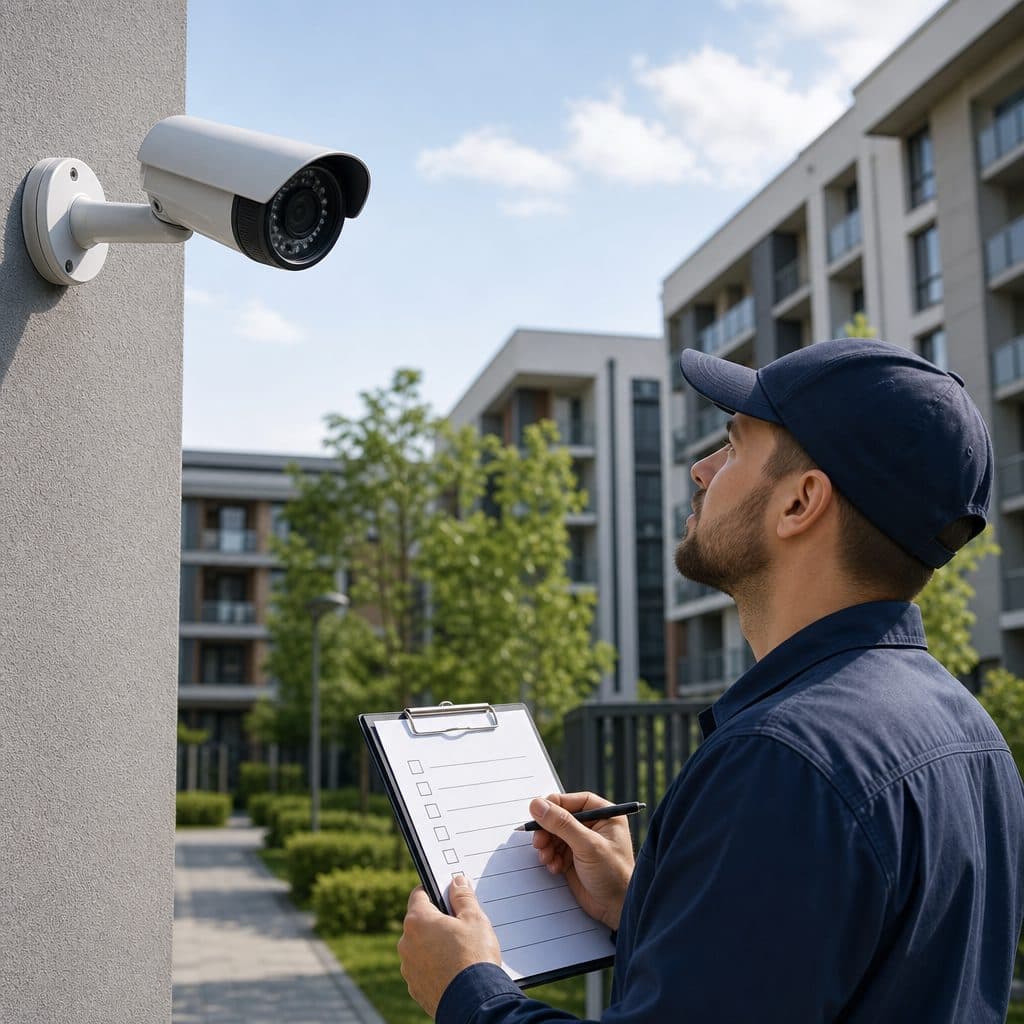
 Routine inspections catch camera issues before residents report them.
The Maintenance Risks Property Managers Usually Miss
Most maintenance problems are not dramatic equipment failures. They are slow changes that reduce evidence quality over time. Landscaping grows into a camera view, a cleaning crew bumps a dome, power cycling changes network settings, or a password gets shared too widely. Because video is often checked only after something happens, the first sign of trouble may be missing footage from the exact doorway or time period you need. A scheduled checklist changes maintenance from a reactive scramble into documented risk control.
Image Quality
Clean, focused images make identification and incident review easier. Dust, glare, condensation, or poor nighttime settings can turn working cameras into low value evidence.
Recording Continuity
A camera that displays live video may still fail to record. Storage errors, expired subscriptions, disconnected drives, and incorrect schedules should be checked before an incident.
Cyber Hygiene
Default passwords, unused accounts, and old firmware create avoidable exposure. Maintenance should include access review, updates, and confirmation that remote viewing is controlled.
Physical Protection
Exterior cameras face weather, vibration, insects, and impact. Mounts, seals, junction boxes, and cable paths need visual inspection, especially after storms or construction work.
Build a Maintenance Schedule That Fits the Property
The right schedule depends on camera count, property size, exposure to weather, tenant traffic, and the value of recorded areas. A small office with indoor cameras may need quarterly inspections, while a multifamily property with parking lots, gates, elevators, and dumpsters may need monthly checks plus event driven reviews after storms, vandalism, renovations, or network changes. The key is consistency, not complexity. Start with the shortest practical interval you can sustain.
Recommended Maintenance Cadence
| Task | Frequency |
|---|---|
| Quick live-view scan | Weekly |
| Lens and housing inspection | Monthly |
| Recording playback spot check | Monthly |
| Storage capacity and retention review | Monthly or quarterly |
| Firmware, passwords, and user access | Quarterly or after staff changes |
| Full camera position audit | Semiannually and after site changes |
Use the table as a baseline, then adjust based on incident history and operating realities. For example, a trash enclosure that receives frequent illegal dumping deserves more frequent playback checks than a locked electrical room. Document the reason for any higher or lower cadence so future managers understand it.
 Document camera views so seasonal changes are easy to spot.
Step by Step Security Camera Maintenance Checklist
Use this checklist during each inspection. Keep notes in your property management system, a shared spreadsheet, or the camera platform if it supports maintenance records. The goal is a clear trail of what was checked and what changed.
1. Confirm Camera Status and Coverage
- Open the live view for every camera and confirm it loads without excessive delay.
- Compare each view with the intended coverage area, such as lobby doors, mailrooms, cash offices, loading docks, or parking entrances.
- Look for new obstructions, including banners, shelving, vehicles, tree growth, holiday decorations, or recently installed equipment.
- Verify that camera names match locations so staff can find video quickly.
2. Inspect Lenses, Housings, and Mounts
- Clean lenses and domes with appropriate materials recommended by the manufacturer; avoid abrasive cloths and harsh chemicals.
- Check for condensation, cracked housings, loose screws, rust, water intrusion, insect nests, and damaged cable glands.
- Confirm exterior cameras remain firmly aimed after wind, vibration, maintenance work, or accidental contact.
- Record any camera that needs a lift, ladder, electrician, or low voltage technician for safe access.
3. Test Recording and Playback
- Do not rely only on live view; search yesterday’s footage and confirm playback opens.
- Check several random cameras, then always test priority areas such as entrances, package rooms, garages, and cash handling points.
- Confirm timestamps are accurate and consistent across cameras, recorders, and exported clips.
- Export a short sample clip to verify permissions, file format, audio settings where applicable, and chain of custody notes.
4. Review Storage and Retention
- Confirm the system is recording for the expected number of days based on your operational policy.
- Look for storage warnings, failed drives, overwritten footage earlier than expected, or cloud synchronization errors.
- Review motion settings if retention is too short, but avoid reducing quality in critical areas without approval.
- Make sure incident footage is saved separately before routine deletion or automatic overwrite occurs.
5. Check Network, Power, and Updates
- Confirm cameras are on stable power and that backup power, if installed, is functioning.
- Review network switch ports, PoE status, wireless signal strength where used, and recent router or firewall changes.
- Apply firmware updates through an approved process, preferably after confirming backups and maintenance windows.
- Remove unused accounts, reset shared passwords, and confirm each user has only the access needed for their role.
Documentation That Makes Maintenance Defensible
A checklist is useful only if someone can prove it happened and understand the results. Record the inspection date, person responsible, cameras reviewed, problems found, action taken, and follow up owner. Use plain location names, not only device numbers. If a camera is intentionally offline during construction, note the reason, expected return date, and temporary coverage plan. Good documentation protects continuity when staff changes and helps vendors diagnose recurring problems faster than a vague service request.
💡 Tip: Keep a current camera map with the device name, physical location, viewing direction, and priority level. Update it whenever cameras are moved, renamed, replaced, or added.
What to Document on Every Inspection
- Pass or fail status for each camera.
- Specific defect, not just “bad camera.”
- Screenshot or exported still when a view is blocked or blurry.
- Retention result, such as footage available back to the expected date.
- Work order number, vendor ticket, or internal task owner.
- Completion date and verification after repair.
Common Problems, Causes, and Recommended Actions
Use the symptom first, then work backward. Many camera issues look similar from a desk, so avoid guessing before basic checks. The following table helps property managers decide whether to handle an item internally or escalate it to a qualified security technician.
| Problem | Likely cause | Recommended action |
|---|---|---|
| Blurry image | Dirty lens, focus shift, or scratched dome | Clean, inspect housing, and schedule refocus if needed |
| Camera offline | Power, network, or device failure | Check power, PoE switch, and cabling, then escalate |
| Missing footage | Storage, schedule, or recording error | Verify recording rules, retention, and drive health |
| Night image too dark | Failed infrared, glare, or poor placement | Clean dome, check IR, and adjust angle |
| Wrong timestamp | Clock or server sync issue | Correct time settings and verify exports |
| Users cannot access | Permission, password, or platform issue | Reset credentials and review roles |
Mistakes to Avoid During Camera Maintenance
The biggest mistake is treating cameras as a set and forget asset. They are part of an operating environment that changes constantly. Another mistake is letting convenience weaken security, such as sharing one login with multiple employees or delaying updates because the system seems to work today.
- Do not clean lenses with unknown solvents; damaged coatings can permanently reduce clarity.
- Do not change retention, resolution, or motion zones without recording the business reason.
- Do not ignore one offline camera because nearby cameras seem to overlap; angles rarely duplicate evidence perfectly.
- Do not postpone account cleanup after staff turnover, vendor changes, or tenant management changes.
- Do not assume cloud recording removes local responsibilities; settings, permissions, bandwidth, and camera health still need review.
How to Recover When Footage Is Missing
If footage is missing, stop routine changes until you understand the gap. Preserve any related video from nearby cameras, note the time range, and document who accessed the system. Check whether the issue is limited to one camera, one recorder, or the whole platform. Then create a corrective action: repair the fault, verify recording, communicate limitations to the appropriate stakeholders, and update the checklist so the same failure is easier to catch.
Budgeting and Vendor Coordination
Maintenance should have a budget line, even when the system is under warranty or subscription. Property managers need room for lift rentals, replacement domes, surge damage, storage expansion, license changes, and professional service calls. When requesting vendor help, send the camera name, location, symptoms, screenshots, recent changes, and access constraints. Clear information reduces repeat visits and helps the technician bring the right parts or tools. Ask for post service verification, not just a statement that work was completed.
When to Escalate
- Recurring offline cameras after power and network checks.
- Water intrusion, damaged cable, or unsafe mounting conditions.
- Recorder drive errors, repeated database corruption, or unexplained retention loss.
- Firmware updates that require coordination with access control, alarms, or managed networks.
- Major camera repositioning, additional coverage, or system redesign.
A Practical Inspection Workflow for Busy Managers
A good workflow is short enough to complete and detailed enough to trust. Begin with a camera list sorted by priority. Review high risk areas first, then common areas, then lower priority views. Mark each camera green for working, yellow for needs attention, or red for no usable recording. Assign every yellow or red item an owner and due date. Close the loop by verifying the fix, not simply submitting a work order.
- Prepare: gather login credentials, camera map, prior inspection notes, and any open incident requests.
- Inspect: check live views, cleanliness, aim, recording, playback, storage, time, access, and alerts.
- Prioritize: separate comfort issues from evidence risks, safety risks, and compliance sensitive areas.
- Assign: create tasks with owners, due dates, access needs, and vendor requirements.
- Verify: confirm repairs with live view, playback, export, and updated documentation.
Decision Framework for Property Managers
Use three questions to decide what to do next. First, is the camera protecting a high value or high traffic area? If yes, fix issues quickly and verify recording immediately. Second, is the problem physical, technical, or procedural? Physical problems need inspection and repair; technical problems need power, network, storage, or platform review; procedural problems need better documentation and access control. Third, is the same issue repeating? Repetition usually means the checklist, equipment, or environment needs adjustment, not another temporary fix.
A balanced program does not chase perfection. It protects the views that matter most, proves recording works, and creates a reliable path for repair. If maintenance findings repeatedly show poor coverage, short retention, or frequent failures, it may be time to evaluate upgrades rather than continue patching the same system.
Keep Your Camera System Ready Before an Incident
Security and Life Integrations can help property managers turn camera maintenance from an occasional task into a dependable operating process. If you are unsure which cameras are recording, how long footage is retained, or whether your current views still match property risks, schedule a professional system review. Bring your camera list, recent incident concerns, and any known problem areas so the conversation starts with practical priorities. A consistent routine today can prevent confusion when the next event requires clear video.
Request a maintenance review and use this checklist at your next property inspection.