
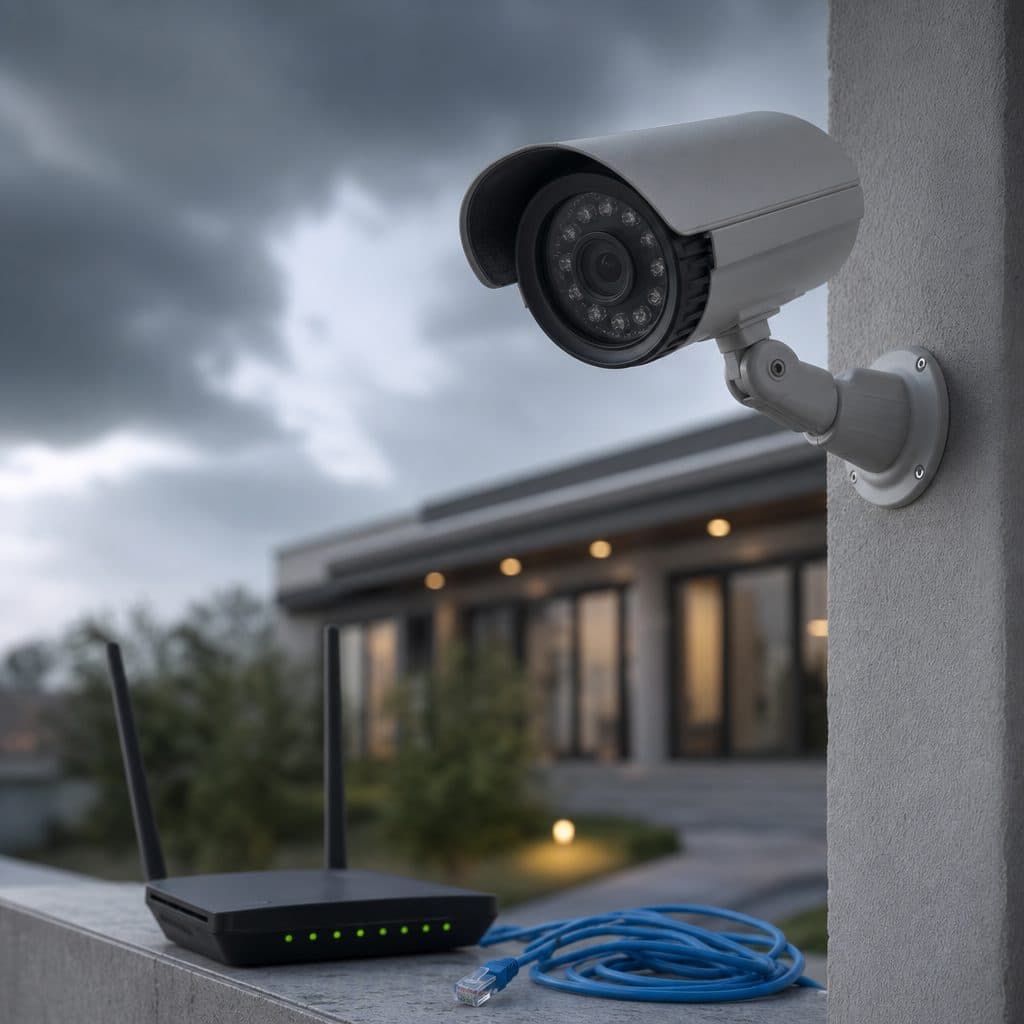
Security Cameras Offline: What the Problem Really Means
A security camera is “offline” when the recorder, viewing app, or monitoring platform can no longer receive its video stream or status signal. The camera may still have power, and it may even be recording locally, but the person who needs the view cannot rely on it. For a business, that gap can affect investigations, employee safety, customer confidence, and operational oversight.
The frustrating part is that offline cameras often look like random failures. One device drops every afternoon; another disappears after a storm; a third works on site but not from the mobile app. In most cases, the cause is not mysterious. It is usually power, network connectivity, bandwidth, device configuration, firmware, storage hardware, or an environmental issue that can be isolated with a disciplined process.
This guide explains the most common reasons security cameras go offline and what to do before you replace equipment. You will learn how to separate a camera problem from a network problem, how to check power and cabling, when to involve your IT team, and when a professional security integrator should evaluate the system. The goal is simple: restore visibility quickly and reduce repeat outages.
 Camera outages are easier to solve with a clear process.
The Main Reasons Security Cameras Go Offline
Start by thinking in layers: power, physical connection, local network, internet access, software, and the camera itself. Troubleshooting in that order prevents wasted time and keeps you from changing settings that were never the problem.
Power problems and PoE issues
Most commercial IP cameras receive power through the network cable using Power over Ethernet, often called PoE. If the switch port is failing, the cable run is damaged, the power budget is overloaded, or the injector is loose, the camera can reboot, freeze, or vanish from the recorder. Analog cameras can have similar symptoms when power adapters, distribution boxes, or coax connections are unstable.
Weak network connection or bad cabling
A cable does not need to be completely cut to create problems. Moisture in an exterior junction box, a poorly terminated connector, crushed cable, or a run near electrical interference can cause packet loss. Wi-Fi cameras add another variable: signal strength may change when doors close, shelving moves, vehicles park nearby, or more devices join the wireless network.
Router recorder firewall or VLAN changes
Security cameras depend on addressing rules. If a router is replaced, a DHCP lease changes, a firewall rule is tightened, or a VLAN is modified, cameras may stay powered but become unreachable. This is common after internet provider upgrades, office renovations, or IT security changes that were not coordinated with the video system design.
Internet upload and remote viewing limits
If cameras are visible on the local recorder but unavailable in the app, the issue may be remote access, not the camera. Internet outages, low upload capacity, blocked ports, cloud authentication problems, or changed passwords can interrupt off-site viewing. High-resolution cameras also consume more bandwidth when multiple users stream live video at the same time.
Firmware software and time synchronization
Firmware bugs, outdated recorder software, expired certificates, and incorrect time settings can all disrupt communication. Time matters because many systems use timestamps for authentication, event search, and cloud connections. A camera that is several minutes or hours off may fail services that expect synchronized clocks.
Hardware age storage and environmental stress
Cameras fail eventually, but complete hardware failure is only one possibility. A failing hard drive can make a recorder appear unstable even when cameras are healthy. Heat, cold, vibration, insects, water intrusion, and sun exposure can damage housings, connectors, and internal electronics. Repeated outages after weather events are a strong clue to inspect exterior hardware.
First Response: Restore Service Without Making It Worse
When a camera goes offline, the first objective is to restore visibility without destroying evidence or masking the cause. Avoid factory resets as a first step. They can erase useful settings and create more work if the issue was only a loose cable or switch port.
💡 Tip: If an incident may have occurred, confirm whether footage is still being recorded before rebooting recorders or storage devices.
Use this quick triage order
- Check the recorder first. If every camera is offline, focus on the recorder, switch, router, or internet connection rather than individual cameras.
- Check one camera. If only one camera is offline, inspect its power, cable, port, and location before changing system settings.
- Confirm local viewing. Stand at the recorder or use a device on the same network. If local viewing works, remote access is likely the issue.
- Look for recent changes. Ask whether anyone moved network equipment, changed passwords, updated firmware, added Wi-Fi devices, or switched internet providers.
- Document symptoms. Write down the time, camera names, error messages, and whether the outage is constant or intermittent.
- Restart carefully. Reboot the affected camera or switch port before restarting the entire recorder. Wait long enough for devices to reconnect.
This process gives your team a clean decision tree. It also gives a service technician better information if the problem requires onsite testing or redesign.
 Network and power checks often reveal the real failure point.
How to Diagnose Offline Cameras Step by Step
Use the following checklist when the outage is not immediately obvious. Assumption: your system uses common IP cameras connected to a recorder or video management platform. If your system is analog or fully cloud-managed, the same logic still applies, but the device names may differ.
Step 1: Verify power at the camera
Look for status lights, infrared LEDs at night, warmth from the housing, or activity on the switch port. For PoE cameras, move the cable to a known-good PoE port if your IT policy allows it. If the camera returns, label the suspect port and keep troubleshooting the switch.
Step 2: Inspect cable and connectors
Check both ends of the cable, not only the camera end. Look for corrosion, loose RJ45 plugs, cracked conduit, pinched cable, missing drip loops, or water inside boxes. For outdoor cameras, open the junction only if it is safe and you can reseal it properly. A temporary repair that lets moisture in can create a bigger failure later.
Step 3: Test the network path
From the recorder or an approved workstation, confirm whether the camera responds to its address. Check switch logs if available. A camera that pings but does not display video may have a stream, password, or codec issue. A camera that does not respond at all may have power, cabling, addressing, or firewall trouble.
Step 4: Confirm IP addresses and credentials
Duplicate IP addresses can make cameras appear to come and go. DHCP reservations, static addresses, and recorder camera lists should match. Also verify usernames, passwords, ONVIF settings, and device permissions. If a password was changed on the camera but not the recorder, the recorder may report the camera offline even though the network is fine.
Step 5: Review bandwidth and stream settings
If outages happen during busy hours, review bitrate, frame rate, resolution, and the number of simultaneous viewers. Do not simply lower quality across the whole site. Instead, balance primary recording needs with secondary streams for mobile viewing and monitoring stations. The right answer depends on risk, retention goals, and network capacity.
Step 6: Check recorder health and storage
A recorder with failing storage, overheating, or outdated software can report camera failures inaccurately. Confirm drive status, fan operation, available storage, system logs, and firmware version. If the recorder reboots by itself or loses multiple channels at once, treat it as a central system issue, not six separate camera problems.
Common Cause and Best Next Action
The table below summarizes practical clues and responses. It is not a substitute for testing, but it helps owners and managers decide who should act first and what information to collect.
| Symptom | Likely cause | Best next action |
|---|---|---|
| One camera offline; others normal | Local cable, port, power, or device fault | Inspect connection, swap known-good port, document result |
| All cameras offline at once | Recorder, PoE switch, router, or power outage | Check central power, switch status, recorder logs |
| Local view works; mobile app fails | Internet, firewall, cloud account, or password issue | Test internet, verify account status, confirm remote settings |
| Intermittent drops after rain or heat | Weather exposure, moisture, overheating, or damaged cable | Inspect exterior boxes, seals, conduit, and camera housing |
| Video freezes but device shows online | Bandwidth, stream, codec, or recorder load | Review bitrate, secondary streams, storage, and CPU load |
A pattern is more useful than a single error message. Repeated failures on one cable path point to infrastructure. Random failures across many cameras point to central equipment or network policy. Remote-only failures point to internet access, authentication, or firewall rules.
Recommended Actions for a More Reliable Camera System
Restoring service is only the first step. If cameras regularly go offline, treat the pattern as a reliability problem that deserves design attention. The most effective fixes are usually basic, documented, and repeatable.
Stabilize power
Confirm PoE budgets, replace weak injectors, and use properly sized switches. Critical equipment should be protected from accidental unplugging and avoid overloaded power strips.
Segment and label network
Use clear camera names, switch labels, and documented IP plans. When appropriate, place cameras on a managed network segment coordinated with IT.
Maintain firmware carefully
Schedule updates instead of applying them during active incidents. Back up configurations first and confirm compatibility between cameras, recorders, and viewing software.
Protect outdoor connections
Use weather-rated boxes, proper seals, drip loops, and strain relief. Many recurring outages begin where cable protection was rushed or disturbed.
For larger sites, create a simple maintenance calendar. Review camera status, recorder health, storage alerts, time synchronization, firmware age, and exterior enclosures at regular intervals. The interval should match the site’s risk level, operating hours, and exposure to weather or vibration.
Risks and Mistakes to Avoid
The fastest fix is not always the safest fix. Camera systems support security decisions, so careless troubleshooting can create blind spots, erase clues, or weaken future reliability. Avoid these common mistakes.
- Factory-resetting devices before recording status and settings. Capture screenshots, logs, and camera names first.
- Replacing cameras without testing the cable path. A new camera will fail if the port, connector, or cable remains bad.
- Ignoring IT changes. Firewall rules, VLANs, password policies, and internet equipment can break video access even when cameras are healthy.
- Using consumer Wi-Fi for critical views. Wireless can be useful, but high-value entrances, cash areas, and loading zones usually deserve wired reliability.
- Lowering quality blindly to reduce bandwidth. Poor images can defeat the purpose of recording. Adjust streams based on the scene and evidence needs.
- Skipping documentation. Without labels, IP records, passwords, and change notes, every outage takes longer to solve.
How to recover after a bad troubleshooting attempt
If settings were changed and the system is worse, stop making random adjustments. Record the current state, restore the most recent known-good backup if available, and involve the integrator or IT administrator responsible for the system. If footage may be needed, protect the recorder and storage before further reboots or resets.
Summary: A Decision Framework
Use three questions to decide your next move. Is the outage one camera or many? Does local viewing work while remote viewing fails? Did anything change recently in power, cabling, internet, passwords, firmware, or network policy?
If one camera is affected, start at the camera and cable. If many are affected, start at shared equipment. If only remote access fails, start with internet and authentication. When outages repeat, stop reacting and redesign the weak point.
Need Reliable Camera Uptime?
Security and Life Integrations can help diagnose recurring camera outages and plan practical improvements for your site today.
Request Support