
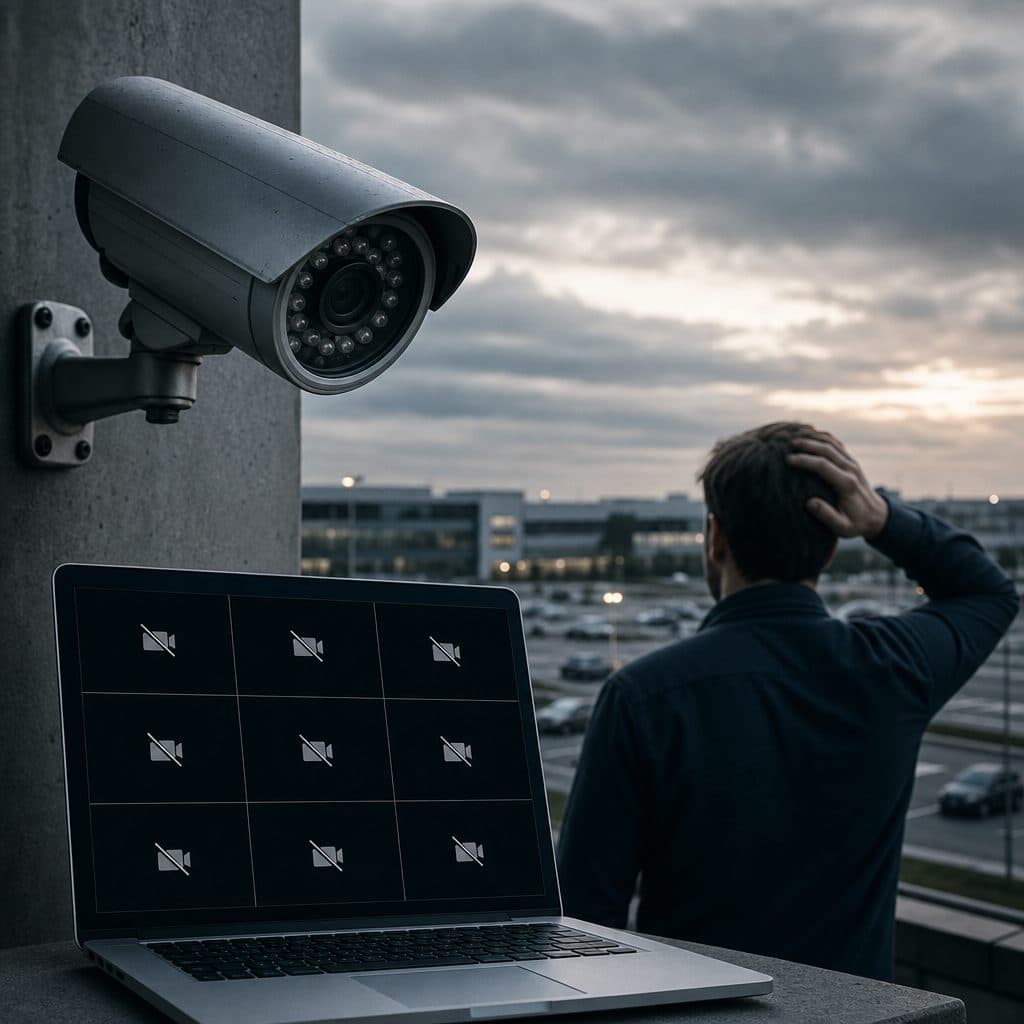
Remote viewing failed. Now what?
Remote viewing is the feature that lets an owner, manager, or authorized employee see live and recorded camera video from outside the building. When it stops working, the cameras may still record locally, but the people who depend on mobile access lose visibility at the worst time. The cause is rarely mysterious. It is usually a change in the network, internet service, recorder settings, user account, or remote access method.
This guide explains why remote viewing stops working on security camera systems and how to isolate the problem without guessing. You will learn the common failure points, safe troubleshooting steps, mistakes to avoid, and when it is smarter to involve a professional integrator. The goal is simple: restore secure access while keeping the camera system reliable for daily operations.
 Remote access depends on the recorder, network, internet service, and app.
How remote viewing normally works
A security camera system typically has cameras connected to a recorder or server, and that device connects to the business network. Remote viewing works when an approved app or browser can reach the recorder through the internet or through a cloud relay. In practical terms, several parts must agree: the recorder must be powered and online, the router must send traffic correctly, the internet connection must be active, the viewing account must be valid, and the app must know where to connect.
Because there are several links in the chain, a failure can look the same to the end user. A phone app may say offline whether the problem is a bad password, a changed public IP address, a failed switch, a blocked port, or an expired cloud session. Effective troubleshooting starts by separating local camera health from remote access health.
The most common reasons remote viewing stops
Most outages fall into repeatable categories. Before replacing cameras or buying a new recorder, check these areas in order. The fastest fix is often not a hardware purchase; it is correcting a network change, reauthorizing a user, or updating the way the system reaches the internet.
Internet service changed
A new modem, static IP change, service outage, or provider maintenance can break the path used by the mobile app.
Router or firewall changed
Port forwarding, firewall rules, VPN policies, and network address translation settings may be removed during router replacement or firmware updates.
Recorder lost network access
The recorder may have a bad cable, wrong gateway, duplicate IP address, disabled network port, or failed power supply.
Cloud or app account problem
Remote viewing can fail when a password changes, a subscription lapses, multi factor settings change, or a device is removed.
Mobile device or software issue
An outdated app, operating system restriction, cached connection, or blocked cellular network can make one phone fail while others work.
Cybersecurity setting blocks access
Stronger firewall rules are good, but they must be planned so authorized viewing remains available through approved methods.
Internet and modem changes
When a business changes internet providers, replaces a modem, upgrades speed, or accepts a provider managed router, the outside address of the network can change. Systems that depend on direct port forwarding or a fixed address may stop immediately. Cloud based systems can also drop offline if the recorder cannot reach the vendor relay after the modem replacement.
Recommended action: confirm that the internet is working from the same network as the recorder. Then verify whether the recorder has the expected IP address, gateway, DNS, and cloud status. If your system uses a static public IP or port forwarding, compare current settings with the documented configuration.
Router, firewall, and port forwarding problems
The router decides what traffic can enter or leave the business network. A factory reset, new firewall, changed rule, or security policy can block the recorder. Older systems often used open inbound ports, while newer designs may use cloud relays or VPNs. Neither method is automatically right for every site.
Recommended action: identify the remote access method before changing rules. If ports are used, confirm they point to the recorder and not to an old address. If a VPN is used, test the VPN first. If cloud access is used, confirm outbound internet access and DNS resolution from the recorder.
Recorder or camera network failure
Remote viewing cannot work if the recorder is offline, even when cameras appear powered. A loose network cable, failed switch, disabled port, IP conflict, or incorrect gateway can isolate the recorder from the internet. In some cases, the recorder still records local camera feeds but cannot communicate outside the building.
Recommended action: check the recorder screen locally if possible. Look for network status, link lights, camera health, time synchronization, and storage status. Ping the recorder from another device on the same network if your staff is comfortable doing that. Avoid changing many settings at once.
User, password, and app issues
Sometimes the system is healthy and the problem is limited to one user. A password reset, disabled user, phone replacement, app update, two step verification change, or expired invitation can stop remote viewing for one person while others continue normally.
Recommended action: test with a known authorized account on a known working device. If only one phone fails, clear saved sessions, update the app, check cellular and Wi-Fi permissions, and sign in again. Never share administrator credentials to solve a convenience problem.
 One failed phone may be an app issue, not a camera outage.
Direct access, cloud access, or VPN: which is best?
There is no single remote viewing method that fits every business. The right choice depends on security requirements, available IT support, internet reliability, number of users, and how quickly managers need access during an incident. Understanding the options helps prevent repeat failures.
| Method | Best fit | Common weak point |
|---|---|---|
| Direct port forwarding | Simple legacy systems with documented firewall rules | Exposes services if poorly configured or forgotten |
| Cloud relay | Owners who need easy mobile access and simple user management | Depends on recorder internet access and account status |
| VPN access | Businesses with IT support and stronger access control needs | Requires VPN setup, user training, and device management |
| Local only backup | Sites that prioritize recording even when internet service fails | Does not provide off site viewing by itself |
For many businesses, a managed cloud connection or VPN is safer and easier to maintain than undocumented port forwarding. However, the system should still be installed with clear records: recorder IP address, user roles, recovery contacts, warranty information, and the approved remote viewing method.
Step by step troubleshooting checklist
Use this checklist when remote viewing stops. Work from simple to advanced. If a step exposes a security risk, stop and involve a qualified technician rather than weakening the system.
- Confirm the site has power, internet service, and no known outage from the provider.
- Check whether local recording and local monitor viewing still work at the recorder.
- Test remote viewing from two devices on different networks, such as Wi-Fi and cellular.
- Restart only approved equipment, usually the app first, then the recorder, then network gear.
- Look for recent changes: modem replacement, router update, password reset, app update, or employee turnover.
- Verify the recorder network settings, including IP address, gateway, DNS, and cloud connection status.
- Confirm user permissions and remove old accounts that no longer need access.
- Review firewall or port forwarding rules against documentation before editing anything.
- Document what changed and what restored service so the next outage is faster to resolve.
💡 Tip: If the recorder is online locally but remote access fails, the likely issue is between the recorder and the internet, or between the user and the access platform. That narrows the search dramatically.
What to avoid during a remote viewing outage
The wrong fix can turn a simple access problem into a security problem. Avoid these common mistakes while pressure is high and visibility is limited.
- Opening every port on the router because one port did not work. This increases exposure and rarely identifies the root cause.
- Using the administrator login on every employee phone. Create named users with only the permissions they need.
- Deleting recorder settings before exporting or photographing them. You may erase the only working reference.
- Assuming cameras are broken because the app says offline. First prove whether local recording is still working.
- Ignoring employee turnover. Former staff accounts may still have access if user management was not reviewed.
Recovery should focus on restoring the previous secure configuration, not creating a shortcut. If documentation is missing, build it during the repair. Record model numbers, network settings, usernames, remote access method, and who is responsible for future changes.
When to call a professional integrator
Call for help when remote viewing affects operations, when multiple locations are down, when the recorder is not reachable locally, or when firewall changes are involved. Also call if the system uses old port forwarding with no documentation. A professional can confirm whether the issue is network, recorder, account, or internet related without unnecessary equipment replacement.
For Security & Life Integrations, the practical objective is not just to make the app work today. The objective is to leave the business with a supportable setup: documented settings, appropriate user roles, secure access, and a plan for internet or router changes.
Warning: If someone suggests disabling the firewall, sharing one administrator account, or exposing the recorder broadly to the internet, treat that as a temporary emergency measure at most. Ask for a safer design before accepting it.
How to prevent remote viewing failures
Prevention is mostly process. Security camera systems live inside the same changing environment as computers, phones, and payment systems. When IT or an internet provider changes the network, camera access can be affected unless it is included in the change plan.
- Keep a simple system record with recorder location, IP address, login owner, app name, and support contact.
- Schedule user access reviews, especially after staff changes, manager changes, or phone replacements.
- Label network equipment so staff know which modem, router, switch, and recorder support the camera system.
- Use secure remote access methods that match your risk tolerance and IT resources.
- Test remote viewing after any internet, router, firewall, or app change.
- Make backups of recorder configuration when the platform supports it.
A small maintenance habit can prevent a major outage. Once each quarter, test live view and playback from an authorized phone away from the site. Confirm that the date and time are correct, recordings are searchable, and user access still matches current responsibilities.
Short decision framework
When remote viewing fails, decide based on scope and risk. If one user is affected, start with account and device checks. If all users are affected but local recording works, investigate internet, cloud, router, and firewall paths. If local viewing and recording also fail, treat it as a system health problem, not only a remote access problem.
Choose the repair that preserves security. Direct access may be fast, but it must be documented and protected. Cloud access may be convenient, but accounts and recorder connectivity must be managed. VPN access may offer stronger control, but users need training. The best answer is the one your team can operate reliably.
Restore remote viewing the right way
Remote viewing usually stops because something changed. Security & Life Integrations can help identify the failure point, restore access, and document the configuration so the same issue is less likely to return.
Schedule a remote viewing diagnosticIf your cameras are recording but the app is offline, do not guess or weaken security. Gather the site details, note recent network changes, and request a focused remote viewing review. A clear diagnosis protects uptime, evidence access, and daily decision making for your business when it matters most.